Question

Removing attached files

  • January 12, 2026
  • 2 replies
  • 14 views

I created a work order for attending Maintain X university and selected a file. The first populated to the add files section. I selected a second, but nothing seemed to populate, so I repeated. After several (6) tries, I discovered that the files had populated to the top of the page. I can remove the first file from the add files section, but none of the subsequent 6. Thoughts or advice? 

2 replies

Zach Brown
Forum|alt.badge.img+6
  • MaintainX Community Team
  • January 12, 2026

Hi ​@SeanSchwoyer 👋 

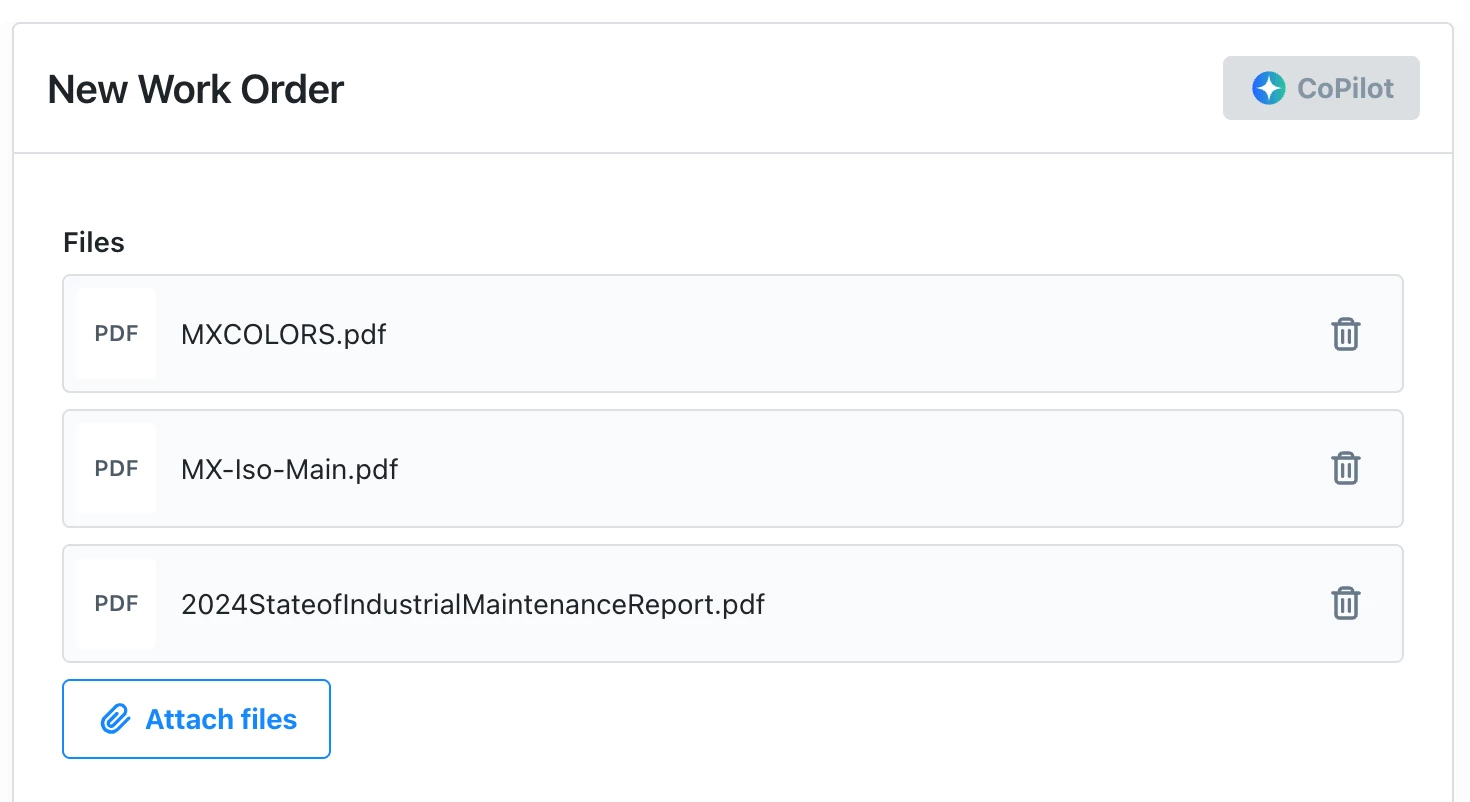
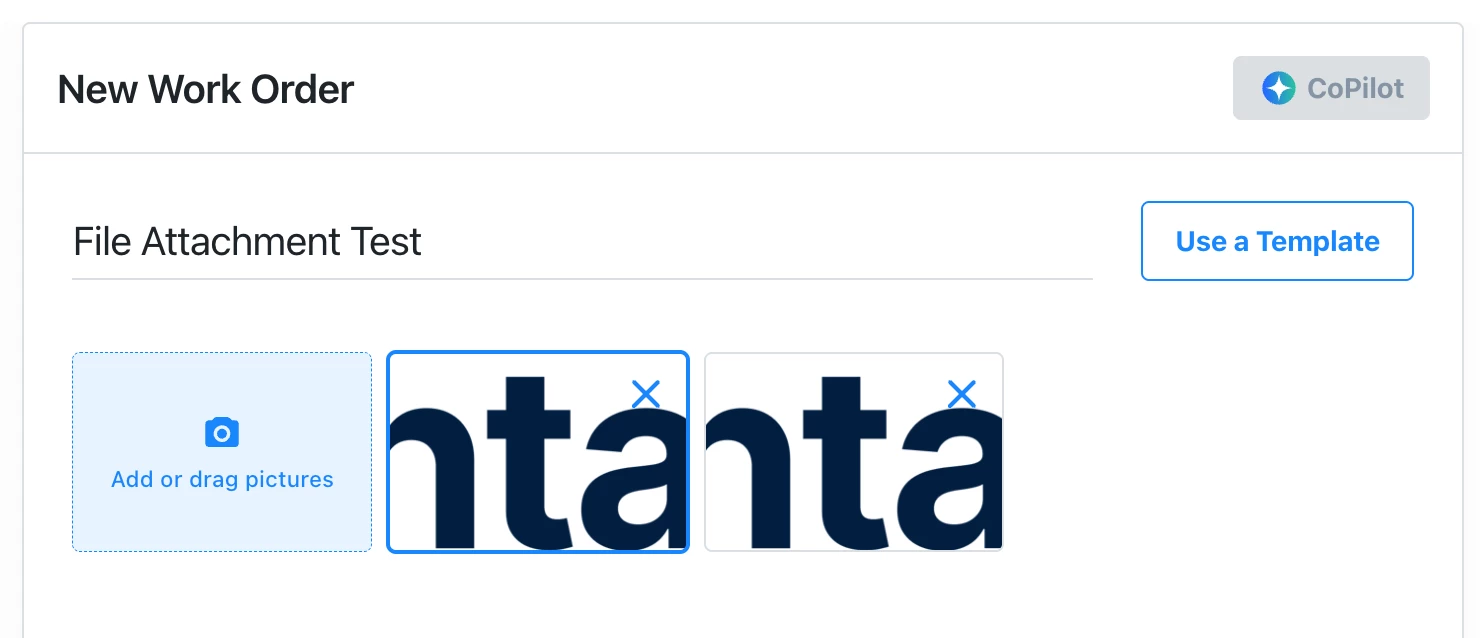
When creating the work order, it sounds like you attached all of your files using the ‘Attach files’ button (partway down the work order draft editor). When you add files this way, if the file is an image, it will appear at the top of the work order. If it is anything other than an image, it will appear above the ‘Attach files’ button.

Here’s an example where I attached 5 files to a work order. 3 of them were PDFs, and 2 of them were PNGs. The PDFs appear above the ‘Attach files’ button:


The PNGs appear at the top of the work order editor (under the work order title):


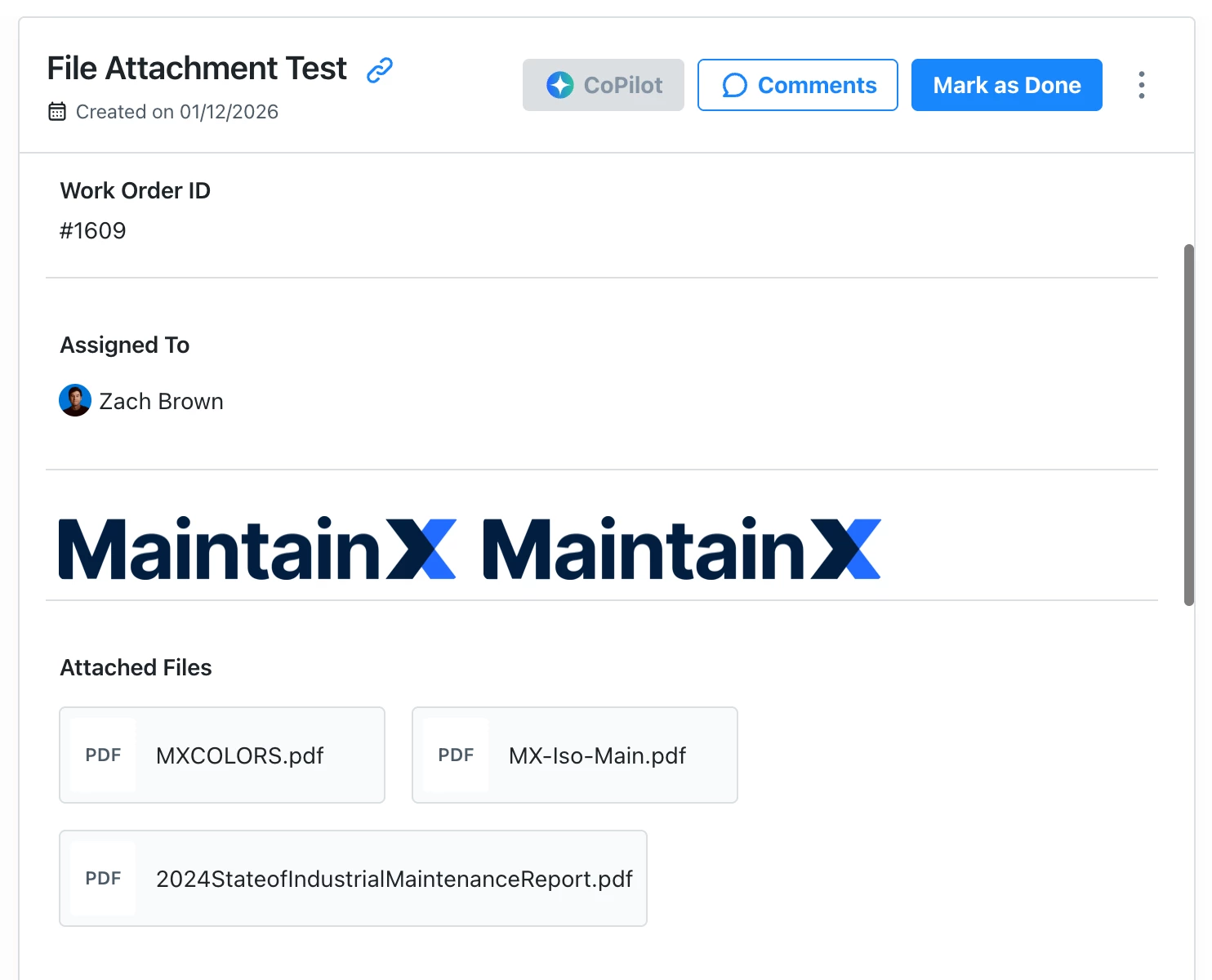
Once I create the work order, all of the attachments show up toward the top of the work order (in my case, under the ‘Assigned to’ field). You can see in this image, the 2 images (MaintainX logos) and then the other 3 attached PDFs.


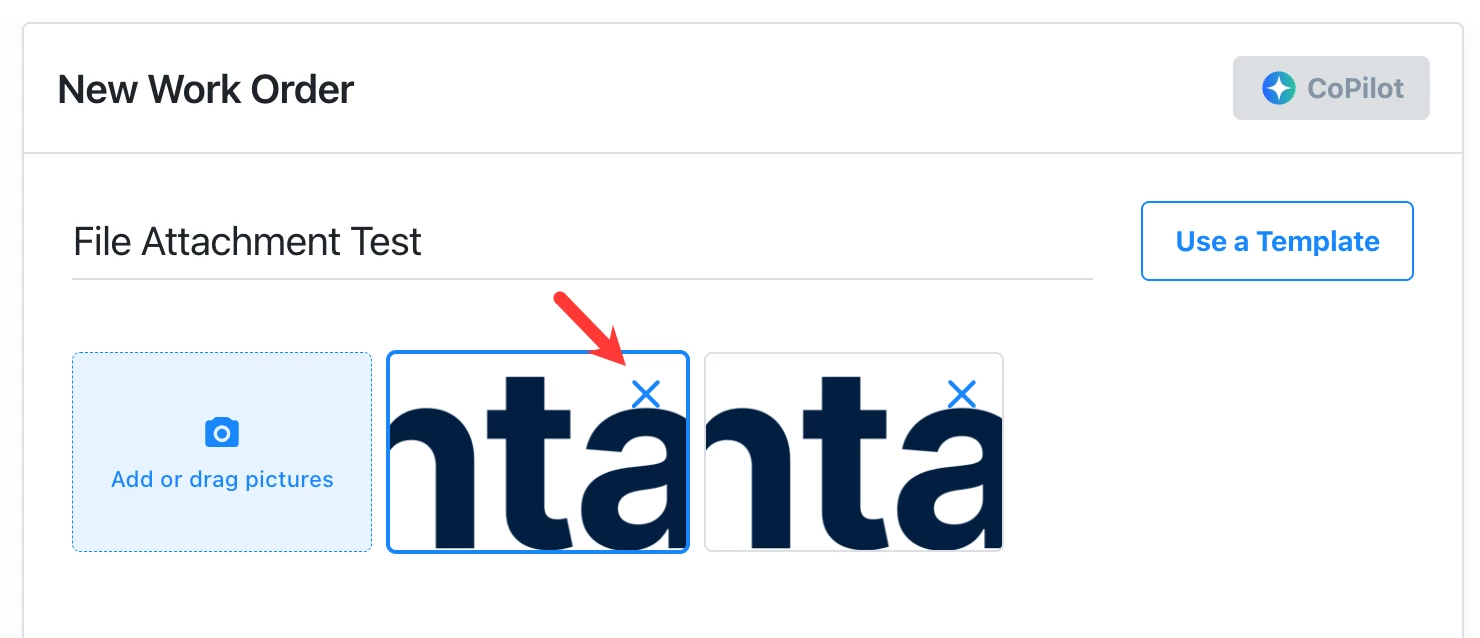
It sounds like the first file you attached was not an image, but the subsequent 6 files were images (which is why they appeared at the top of the work order draft). If you edit the work order, you should be able to remove the image file attachments scrolling to the top of the work order by clicking the ‘X’ in the upper-right corner of the thumbnail of each image.


Let me know if this works!


  • Author
  • Emerging Technician
  • January 13, 2026

The X was so faint that I missed it. 🤦🏻 Thanks.